Archive for the ‘Outlook’ Category

New Release: 1-Click Duplicate Delete for Outlook

Tuesday, April 10th, 2007

Yes, version 1.07 is now available for trial and to all registered users. Since the software just works great, there was little to fix / improve. Differences in very long texts are now displayed better and the recognition of duplicates with tiny differences was improved.

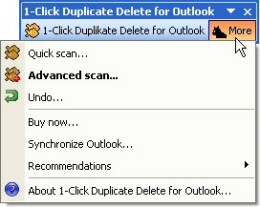
The toolbar (and the menu):

Outlook duplicates

You can download the demo version here and the registered version here.

Duplicate e-mails in different folders

Thursday, March 29th, 2007

Having the same e-mail twice is bad enough. Bad what happens if you have the same e-mail twice in your Outlook – but in different folders? This might happen if you answered your e-mails, moved the originals and then, for same some reason, downloaded them again by accident.

Not a big thing, 1-Click duplicate delete for Outlook can fix this easily.

Simply run the scan in advanced mode:

Then, tell the program where to search, to include sub folders and to recognize duplicates that are in different folders:

That’s all, the program will do the rest, scan your mail folders and recognize and remove the duplicate e-mails. Try it now! Download 1-Click Duplicate for Outlook.

Asynchronous WHAT??

Monday, March 26th, 2007

Yes, Easy2Sync has some special terms, because some very special things can happen during the synchronization (both for file synch and e-mail synch).. Want to know what that means? Simply press F12 (which open the options), and on the first page wait with the mouse cursor over the synch case item you want to know more about. A tooltip with the explanation will appear.

Download Easy2Sync for Files/ Download Easy2Sync for Outlook.

Synchronzing with an USB stick that changes its drive letter

Friday, March 23rd, 2007

On some Windows systems, USB devices (USB sticks, USB hard disks or whatever) like to change their drive letter. It’s their idea of having fun. Plug it in and it’s E:\, take it out, plug it in again and it’s F:\. Great. How can you synchronize your files with such a chameleon? Any path that you enter is bound to be wrong, sooner or later. So how can you synchronize with it?

Well, you can, with Easy2Sync.

First, make sure that the device has a unique name. You can edit that it its properties, if necessary.

At the task, where you’d normally enter the drive letter, you can enter the drive name, along with some special markers:

In General: %DRIVELETTER:MyDriveName%:\

The percent signs, the colon and the word “DRIVERLETTER” are pre-defined markers. You only have to fill in the name of your USB drive. If your USB stick had the name “MyUsbStick”:
%DRIVELETTER:MyUsbStick%:\

Or if you want to synchronize with a subdirectory:
%DRIVELETTER:MyUsbStick%:\MySubdirectory\

Try it:

Download Easy2Sync for Files

Download Easy2Sync for Outlook

Forgotten attachments

Sunday, March 18th, 2007

How many times did you send an e-mail, but forgot the attachments? Don’t try to count, fix it!

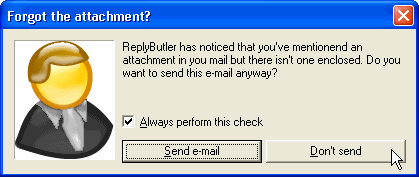
One of the many thing that ReplyButler does is to save you from this embarrassment. It analyzes your answer, and your attachments and asks you if it looks like you forgot the attachment. Automatically.

Forgot attachment

Try it! Download ReplyButler.

Outlook Backup vs. Virus-Scanner

Monday, March 12th, 2007

As Golem reports, there’s a problem with Microsoft’s OneCare that can lead into the deleting of the entire PST file (which contains all your e-mails). Well, that’s definitely a great protection against e-mail viruses, but perhaps not what you want… 😉

As always, doing a backup is a great idea if you like your data.

You can backup or synchronize your Outlook data with Easy2Sync for Outlook. However, if you only want to automate the backup your PST-file, simply use Easy2Sync for Files. Even the Freeware Edition will be good enough for this job. You can get it here: Download Easy2Sync for Files.

New Release: ReplyButler 1.27

Monday, March 12th, 2007

A new release of the text automation utility ReplyButler is now available. It fixes a problem with the default settings for the name recognition, improves the language recognition and improves the name recognition in some special cases.

ReplyButler is a great tool for everybody who writes a lot of e-mails and looks for an clipboard shortcut program that’s specialized on e-mails.

You can get a free test version here: Download ReplyButler!

Easy2Sync for Outlook 1.20

Wednesday, March 7th, 2007

Yes, it’s release time. Now it’s the turn of Easy2Sync for Outlook.

There are quite a few changes this time, like UI improvents, a second trigger folder, a new task type and enhanced Vista compatibility.

You can download the latest version here.

ReplyButler today for $19,99

Monday, February 26th, 2007

We’re having a second run at Bits du jour today, so you can get the ReplyButler Business Edition for an amazing $19,99! Check their website for the details.

If you haven’t checked out ReplyButler you can do so here. It’s our “Outlook help-desk plugin with integrated multi-language text module management and automatic name answering”.

Automatic e-mail organization with ReplyButler

Sunday, February 18th, 2007

Do you keep the e-mails you answered? Probably. Do you keep them well organized? Probably not.

With ReplyButler that’s easy, because it’s done automatically. The program can automatically move and e-mail that you answered into the right folder. The customer is talking about “Product A”? Simply defined a rule for the products name and ReplyButler will move any e-mail where that product is mentioned in subject and / or mail body.

ReplyButler can move the original e-mail, or also your answer (after it’s been sent) – whatever you like.

Try it, I promise that you won’t want to miss it any more!

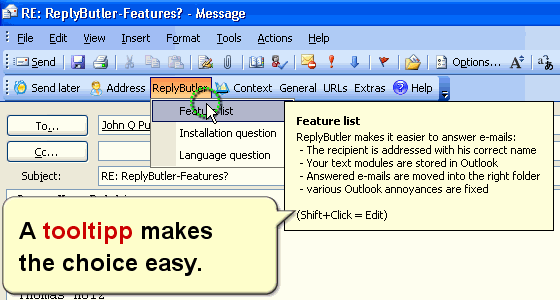
E-Mail answering

Merging contacts (duplicates)

Friday, February 16th, 2007

Especially when you’ve got duplicate contacts, it can happen that the contacts are not quite the same, but similar. Now what can you do about this? Deleting simply one version probably isn’t what you want.

With 1-Click duplicate for Outlook it’s easy by default. Simply run the scan in the 1-click mode and the program will merge the contacts.
Meaning: If the items are the same, it’s fine. If some items are different, they’ll be assigned both value. The new one and in brackets the old one. This way, you still have both values (in case that you still need the old phone number, for example).

If you’re using the advanced mode, please make sure that you don’t disable the contact merge option for this (it’s enabled by default):
Merging contacts

Give it a try now! (It even works with the demo version.)

New Release: 1-Click Duplicate Delete for Outlook

Friday, February 9th, 2007

Yes, version 1.06 is out. Since the software just works nicely, there was little to fix / improve. We now use a different internal method for the icons on the toolbar. You won’t notice that of course, unless you have one of the very few PCs where it didn’t work before… 😉

The toolbar (and the menu):

Outlook duplicates

You can download the demo version here and the registered version here.

Making things bigger – the smallest tip ever

Friday, February 9th, 2007

Today’s the shortest tip ever: Did you now you can change the size of Easy2Sync’s main window? Simply drag the border or click on the maximize button. (This works with Easy2Sync for Files and Easy2Sync for Outlook.)

Organizing your tasks II – Other sync view filters

Monday, February 5th, 2007

If you have many tasks, it’s time to get organized. If you haven’t already done so. Use the task collections to group several synchronization tasks into one task collection. And then enable the filter “Don’t show elements of task groups” in the view menu. And suddenly your file / e-mail synch became a lot easier. You’re seeing much less tasks now (don’t worry, they’re still there), but you can run all of them in one go with the task collection.

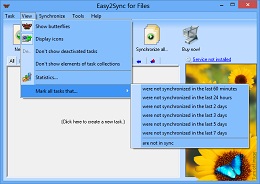
The same applies to deactivated tasks. You can deactivate a synch if you currently don’t need it any more, but still don’t want to delete it. So, simply deactivate the synchronization tasks and use the menu item in the view menu to hide tasks like these:
Screenshots

Protecting your private calendar items with Easy2Sync for Outlook

Friday, February 2nd, 2007

Easy2Sync can synchronize both your e-mails and your calendar items.
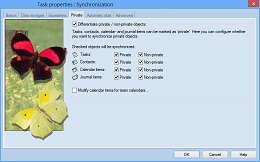
This can be useful if you want to share your calendar with you co-workers. But what about your private data in your calendar? That’s none of you co-workers’ business. No problem with Easy2Sync for Outlook – you can simple exclude private items from the PST sync. Simply active the “private filter” in your task properties.

Synchronize private e-mails

It also works the other way round. You can synchronize (or copy) only your private items, if you’d prefer that, for example for your private calendar at home. Download it now and try it.