Archive for the ‘Trick’ Category
Wednesday, November 22nd, 2017
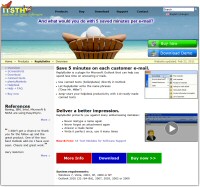 How can support requests be answered faster? Best in less than 2 seconds?
Impossible? No. ReplyButler brings many necessary features to your Outlook:
- Names
By default, ReplyButler recognizes customer names, their name, language and style. And automatically responds appropriately. With name and appropriate title. Even if you receive an e-mail from a website form, this will be detected automatically.
- Good text modules
Of course, knowledge is always required for support requests. Your knowledge. But once this is organized in text modules, you can retrieve and insert it in fractions of a second. So it is worthwhile to invest some time and make it perfect. For example with screenshots. Your customer will be pleased with a high quality response. Without a text module, convenience often triumphs and the answer becomes less perfect.
- Automatic relevance
ReplyButler automatically learns which text module is relevant when and displays proposals accordingly. You can also train the relevance search manually and define keywords that make the text module relevant. For example, if customers often ask if your hotel has WLAN, you can enter WLAN, WiFi and Internet as search keywords for the appropriate text module.
- Automatic use
For particularly strong keywords, such as error codes, you can activate automatic use in the properties of the text module. It is then inserted automatically if it is relevant. This, of course, speeds up the response speed enormously. Just click on “Reply” and the complete e-mail will be written for you. All you have to do is send it.
Curious? More information about our Outlook-Helpdesk System here.
Posted in ReplyButler, Trick | Comments Off on Answer support mails with Outlook faster
Thursday, October 19th, 2017
There’s a lot of data in every Android phone. What is the best way to synchronize it?
1) Synchronize contacts/appointment with Outlook
Easy2Sync for Outlook allows you to easily synchronize Outlook calendars and contacts with the corresponding Google services. And they are automatically synchronized with your Android mobile phone.
2) Synchronize photos via MTP/USB
When you connect your phone to your PC, Easy2sync for Files allows you to synchronize all folders with your PC, just like normal file folders. Perfect for backing up your photos.
Power tip: The task type “Overwrite” (=copying and never deleting) is perfect for this purpose. This will give you a copy of all the pictures, even if you delete something on your phone for space reasons.
3) Synchronize files via MTP/USB
Just like the photos, you can synchronize all other file folders with your PC. Simply select when you create the task. Ready.
Both Easy2Sync’s are available in a bundle with 25% discount.
Tags: Android, mtp, USB
Posted in Sync, Trick | Comments Off on Synchronize Android/PC: contacts, appointments, photos, files
Saturday, September 30th, 2017
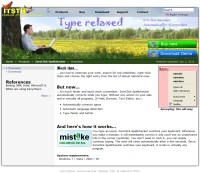 Text expansion is a handy tool for all the things you often type. Your own street, telephone number, certain phrases, etc.
An abbreviation such as asap# then becomes the corresponding complete text through text expansion. Without having to call hotkeys, menus or programs.
Unfortunately, Windows can’t do this by default. But ZeroClick Spellchecker can, by the way. Just enter it in “Options > Replace my words > Always replace”
For more info, please visit the webpage of our Windows auto-correction software.
Posted in Auto-correction, Trick | Comments Off on Universal text-expansion for Windows
Friday, January 11th, 2013
A customer recently had the problem that e-mails were stuck in the outbox whenever he had just looked at the folder. Was this caused by our Outlook tool ReplyButler? Well, that wasn’t the case (of course 😉 ). But nevertheless it’s a good reason to show 2 solutions to this widespread problem here:
1. Workaround
Double-click the e-mail in the outbox, switch to another folder and now submit the e-mail again.
2. Real solution
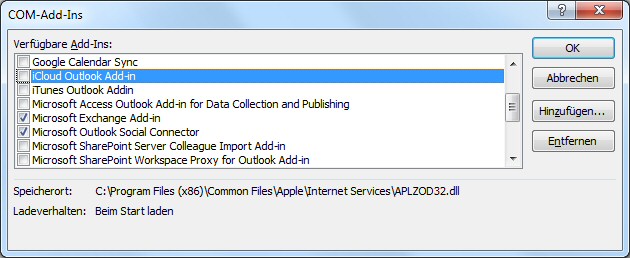
The only solution to this problem is to disable addins systematically, because one of them causes this problem. You can do that at “File > Options > Add-Ins > Go to: Com-Add-Ins”.
In the customer’s case the problem was caused by the iCloud add-in:
Posted in Outlook, ReplyButler, Trick | Comments Off on Tipp: When e-mails are stuck in the outbox
Saturday, May 7th, 2011
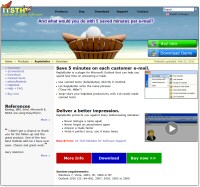 Several programs exist to speak an e-mail instead of typing it. One common problem however is the addressing phrase: The voice recognition programs often can’t recognize names properly (especially last names).
If don’t want to skip the greeting phrase (which would be impolite), ReplyButler can help you (the Home Edition is sufficient for this case). When answering an e-mail, the program automatically inserts the greeting phrase (with the correct name, gender, even title if required). You just have to dictate the actual e-mail.
This works even with new e-mails if the name of recipient can be guessed from the e-mail address. More information about ReplyButler.
Posted in Outlook, ReplyButler, Trick | Comments Off on Tip: Answering e-mails with speech recognition
Tuesday, October 12th, 2010
ReplyButler is all about Outlook answers and texts. And there are few interesting Tricks if you want to use the same texts in many / all e-mails.
This can be used for phrases like “thank you for your e-mail” as well as for dynamic texts containing unique promotion codes.
In the simplest case you only want to have always the same text at the beginning of the e-mail. Simply append it to the greeting phrase. You can use the placeholder {RB_Break} to insert line breaks.
Using the regular text modules is of course more convenient and more powerful. They support images, placeholders for promotion codes from external files, etc. Simply create a text module and activate that they always want to use it:
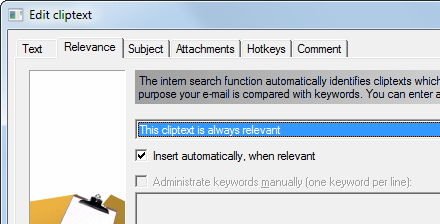
Such a phrase looks of course unfitting if the same customer keeps reading it in every e-mail. You can tell ReplyBuler to remember for which customer the phrase was already used and the (if you’re inserting it manually) warn you (or simply do nothing if the phrase would be inserted automatically).
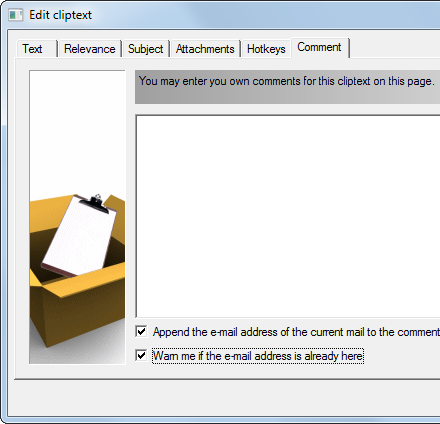
This way each customer will see the phrase only once.
Posted in Outlook, ReplyButler, Trick | Comments Off on Trick: Automatic phrases with ReplyButler
Friday, July 23rd, 2010
The latest release of Easy2Sync for Files has a nice new feature. It can help you synchronize your FileZilla (an FTP client) configuration between several computers.
Here’s how to use this feature:
- Install Easy2Sync for Files (Freeware Edition is enough for this)
- Create a new task
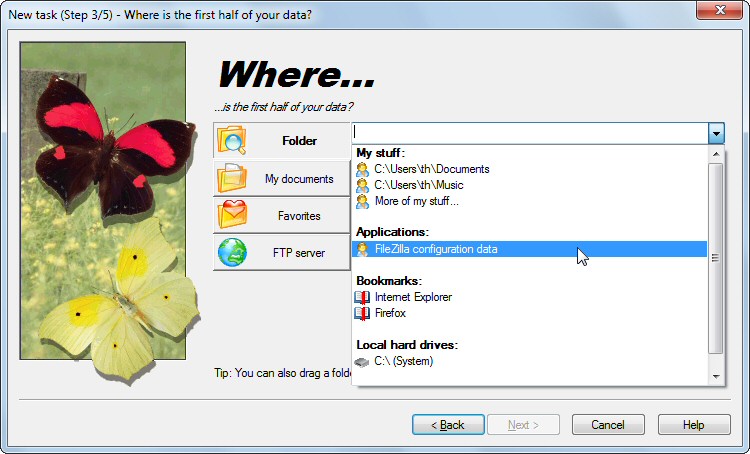
- For the data source use the drop down box (black triangle on the right) and select FileZilla
- Repeat for the second data storage.
That’s all.
Here’s a screenshot of the data storage with the new option:
Posted in Files, Sync, Trick | Comments Off on Synchronizing FileZilla with Easy2Sync for Files
Saturday, March 13th, 2010
When answering customer e-mails it’s often helpful to quote URLs for more information. To avoid typos, you can use ReplyButler’s text module engine to store them nicely in menus.
And now comes the interesting part: If your website is multi-language, you can store multiple URLs (pointing to the same page, but in different languages) in the same text module. It’s still just one text module. Just one item that you have to click on. But ReplyButler knows that there’s more than one URL and will use the URL that you have entered for the language that was used in the current e-mail.
Automatically.
More info: ReplyButler.com
Posted in Outlook, ReplyButler, Trick | Comments Off on Trick: Using URLs as text modules
Tuesday, July 14th, 2009
 One of the many small features that Easy2Sync for Files has is that it supports you when searching for the right folder. The folder where your browser stores your bookmarks, for example.
Simply create a new task in Easy2Sync and instead of entering a folder, click on the small black triangle on the right. The combo box will open and present you (among other things) a choice of your browser bookmarks. Simply choose yours and repeat this for the second computer. This works with the Freeware Edition for the browsers Opera and Firefox. (IE users will need the Home or Business Edition because of the subfolders.)
Posted in Files, Free, Sync, Trick | Comments Off on Synchronizing your browser bookmarks for free
Saturday, May 2nd, 2009
Both Easy2Sync for Files and Easy2Sync for Outlook offer the option to summarize multiple tasks (via file > new) into a “task collection”. This is very useful if you wan to synchronize multiple folder trees or PST files in a row. Furthermore you can (via the menu ‘View’) hide all tasks from the main list that are already member of a task collection. This makes the list shorter and easier to read.
Only downside: Sometimes you want to run just a single task of the task collection. But you can’t do that if the task is hidden.
The trick here is very simple and very useful: Use the right mouse button to click on the task. The context menu contains not only the usual commands (like ‘Edit’), but also all tasks that are a member of that task collection. Now one click is enough to run the specified sync task.
More info: Easy2Sync for Files, Easy2Sync for Outlook
Posted in Files, Outlook, Sync, Trick | Comments Off on Tip: Rapid access for task collections
Monday, December 29th, 2008
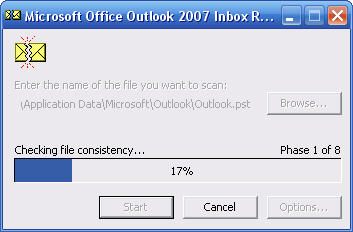 If you ever have a problem with your PST file (like strange errors in Outlook or messages about a ‘corrupted’ PST file), you can use Microsoft’s ScanPST to fix the problem.
There’s a tutorial at Petri on repairing the PST file with the all details, because it can be quite tricky to find and use the ScanPST.
Posted in Outlook, Trick | Comments Off on How to Repair your PST file
Sunday, September 14th, 2008
When you’re working a lot with Microsoft Word and other programs, you may want to keep Word open all the time. Instead of closing, it would be nice if the program was minimized to the tray.
Well, you can do that with our program TheBest Minimize to Tray. SImply start Word, start our Tray software and create a new exception. Just tell the program that any application named “Word” shouldn’t be closed when you click on the X button, but minimized into the tray.
Easy. Give it a tr(a)y and minimize Word into the tray.
Posted in Minimize to Tray, Trick | Comments Off on Trick: Minimizing Word into the tray
Tuesday, August 26th, 2008
We’ve released the Pro Trial of our Logo Design Software “Company Logo Designer”. This trial version makes it even easier for your to design your perfect logo. In contrast to the 50 templates of the normal trial it includes the 200 logos of the free logo packs PLUS another 200 logo templates that are normally only included in the Comfort Edition.
Company Logo Designer
Start designing your logo!
Posted in Company Logo Designer, Free, Trick | Comments Off on 450 Logo design templates
Friday, April 25th, 2008
Outlook has a built-in feature to move old e-mails to a file named archive.pst. (Which can be synchronized with Easy2Sync, too, by the way.) If that feature isn’t good enough for you, you can use Easy2Sync for Outlook to replace it.
For this, Easy2Sync supplies a task type move e-mails instead of synchronizing them:
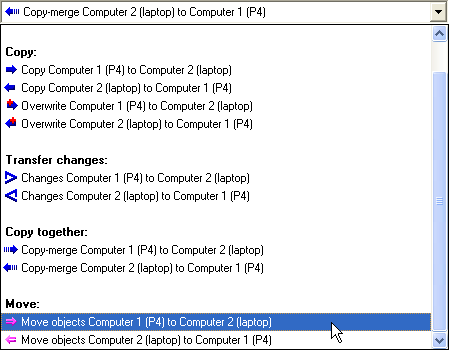
So where’s the trick?
Now you can use Easy2Sync’s filter mechanims. You can exclude objects by “private” flag, move them only if they belong to a certain category or specify different age boundaries for contacts, e-mails or calendar items.
For a complete set of the filters have a look at Easy2Sync for Outlook.
Posted in Add-In, Outlook, Sync, Trick | Comments Off on Moving old e-mails
Tuesday, March 25th, 2008
One of the new features in the latest Easy2Sync for Outlook release is rather small, but very useful. You can tell the program not to close, but to minimize into the tray when you press the X-Button. You can enable it here:
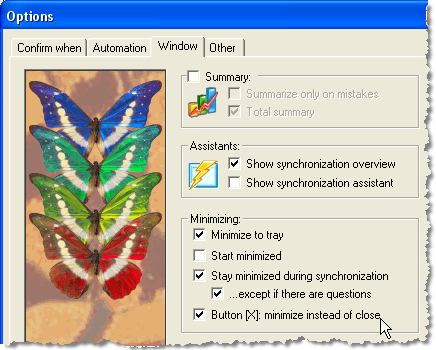
This protects you against closing the program accidentally, if you want to keep it open for an automatic sync. If you want to give it a try, check out our Outlook sync program.
Posted in Outlook, Sync, Trick | Comments Off on X-Files: Don’t close – Minimize to Tray
