Archive for the ‘Files’ Category
Friday, December 4th, 2009
 A new version of Easy2Sync for Files is available. This time, there’s a big number of changes. The dialog “synchronization overview” was completely reworked and is now much clearer. If you want, you can now turn off the butterflies (just like in Easy2Sync for Outlook) in the “View” menu.
Furthermore:
» Progress bar in the taskbar (req. Windows7)
» Installations on USB devices are automatically recognized
» The log file is easier to reach
» It’s easier to use the service menu under Vista/Windows7
As usual, the update is free for all registered users. More info about the software can be found on the file sync homepage.
Posted in Files, New Release, Sync | Comments Off on Easy2Sync for Files 1.37
Thursday, August 13th, 2009
A quick update for Easy2Sync for Files: Version 1.36. In the previous version using the “safe copy” option could lead to the stopping of the entire task. This is fixed now. In general this options is useful for safely copying files over unstable networks.
Furthermore a problem with the lock files was fixed (they’re useful if you run competing syncs on multiple computers).
As always the update is free for our registered customers. For more info about the product, please refer to the File sync page.
Posted in Files, New Release, Sync | Comments Off on Update: File sync version 1.36
Monday, August 3rd, 2009
We’ve just released Easy2Sync for Files 1.35. There are two major changes in the program. First, the update includes an improved support for unreliable networks. Wireless, dial-up, VPN, etc. Â Easy2Sync is now much better at detecting broken connections and incorrect server responses to protect your data.
The second change is a reworked user interface with new icons. Hope you like. 😉
The update is (as always) free for registered users. For more info please refer to the file sync page.
Posted in Files, New Release, Sync | Comments Off on New file sync version 1.35
Tuesday, July 14th, 2009
 One of the many small features that Easy2Sync for Files has is that it supports you when searching for the right folder. The folder where your browser stores your bookmarks, for example.
Simply create a new task in Easy2Sync and instead of entering a folder, click on the small black triangle on the right. The combo box will open and present you (among other things) a choice of your browser bookmarks. Simply choose yours and repeat this for the second computer. This works with the Freeware Edition for the browsers Opera and Firefox. (IE users will need the Home or Business Edition because of the subfolders.)
Posted in Files, Free, Sync, Trick | Comments Off on Synchronizing your browser bookmarks for free
Thursday, June 25th, 2009
We’ve released the version 1.05 of our file duplicate search tool. The old version could crash when encountering errors in the file system. That is fixed with the new version.
For more information, please refer to the info page of our file duplicate search program. As usual, the update is free for registered users.
Posted in Duplicates, Files | Comments Off on Improved file duplicate search
Tuesday, May 12th, 2009
The new version 1.34 of our file sync tool is out. The major change are the two new task types:
- Copy files always
- Delete files
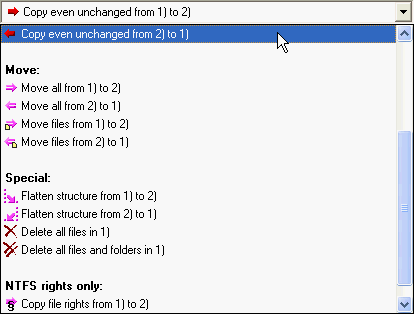
The first one allows you copy files even when they seem be unchanged. This is great for creating backups of TrueCrypt containers because they change neither size nor date, when their contents are changed.
The second task task makes it easier to automatically deleted unwanted files. The nice twist here is that you can combine it Easy2Sync’s filter options for file and path names and file age.
You can find more information about Easy2Sync for Files on the file sync page.
Posted in Files, New Release, Sync | Comments Off on Easy2Sync for Files – New version 1.34
Saturday, May 2nd, 2009
Both Easy2Sync for Files and Easy2Sync for Outlook offer the option to summarize multiple tasks (via file > new) into a “task collection”. This is very useful if you wan to synchronize multiple folder trees or PST files in a row. Furthermore you can (via the menu ‘View’) hide all tasks from the main list that are already member of a task collection. This makes the list shorter and easier to read.
Only downside: Sometimes you want to run just a single task of the task collection. But you can’t do that if the task is hidden.
The trick here is very simple and very useful: Use the right mouse button to click on the task. The context menu contains not only the usual commands (like ‘Edit’), but also all tasks that are a member of that task collection. Now one click is enough to run the specified sync task.
More info: Easy2Sync for Files, Easy2Sync for Outlook
Posted in Files, Outlook, Sync, Trick | Comments Off on Tip: Rapid access for task collections
Thursday, March 5th, 2009
 We’ve just released version 1.03 of our file duplicate remover software. The list of changes is simple: It fixes a registration issue with Vista 64 Bit / XP 64 Bit.
For more info, please visit the homepage of our duplciate file homepage.
Posted in Duplicates, Files, New Release | Comments Off on New file duplicate remover version 1.03
Tuesday, February 10th, 2009
We’ve just published a new version of Easy2Sync for Files. The big news is the long overdue rework of the filter dialog. The size file now has its own entry and we have added an filter for the file age:
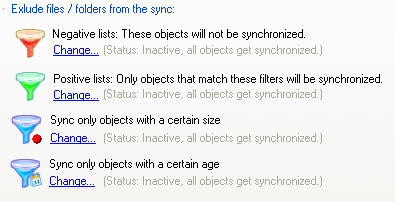
Furthermore we’ve improved the wizard that helps you set up new task in some details. The update is (as always) free for our existing customers.
For more information please visit our file sync page.
Posted in Files, New Release, Sync | Comments Off on New file sync version 1.33
Wednesday, January 28th, 2009
 We’re already offering some bundles for our products (with up to 35% discount in case of the Big Bundle).
Today, we’ve launched our new Duplicate Bundle. It contains our solutions to remove duplicate files and duplicates in Outlook.
By purchasing both programs in a bundle, Â you’ll get a 25% discount over the normal price. Please find the bundle here.
Posted in Duplicates, Files, Outlook | Comments Off on New bundle to remove duplicates
Tuesday, January 13th, 2009
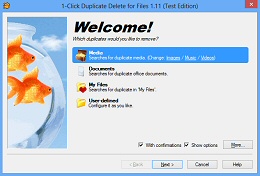 We’ve just published version 1.01 of our duplicate-file-detection software. The new version improves Vista compatibility and fixes a problem with choosing the foldes on some systems.
For more information and download links, please visit the product’s homepage.
Posted in Duplicates, Files, New Release | Comments Off on 1-Click Duplicate Delete for Files 1.01
Saturday, January 3rd, 2009
I hope you had a great New Year’s Party and a good start into 2009.
We’ve certainly had a good start and are now offering a new product: 1-Click Duplicate Delete for Files:
The new product allows you to quickly search the harddisk (or certain folders) for duplicate files. Just like our 1-Click Duplicate Delete for Outlook it’s optimized for speed and intelligent suggestions for your search criteria. Furthermore you can limit your search to file types like images, music or video.
So, if you’d like to find out how much space you could save on your harddisk, download the Demo Version.
Posted in Duplicates, Files, New Release | Comments Off on New year, new product, no more duplicate files
Monday, December 15th, 2008
 We’ve just release another version of our file synchronization Software Easy2Sync for Files.
The major change this time is the improved handling of daylight saving time changes. Whenever it has changed, the file times on some file system change, too. The new release is designed to handle this easily and automatically.
For more info about Easy2Sync, please visit the Easy2Sync homepage.
Posted in Files, New Release, Sync | Comments Off on Easy2Sync for Files 1.32
Monday, November 3rd, 2008
Version 1.31 of our file sync software Easy2Sync for Files is out now. It’s a service release and contains just a few smaller corrections.
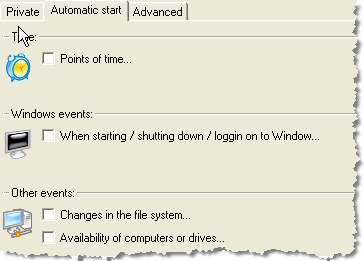
Excerpt of the automatic start features
If you’d like to update, please visit the Easy2Sync for Files homepage.
Posted in Files, New Release, Sync | Comments Off on File Synchronization: New software version
Sunday, September 21st, 2008
We’ve just published a new release of Easy2Sync for Files. It’s a minor update, with little changes. If you had trouble setting up new tasks that only synchronize local folders (and not network folders), you should have a look. Furthermore, by popular request, the new version allows you to send status mails to multiple receipients (instead of just one).
As with all our software, updates are free for registered users. More info here: On our File sync software.
Posted in Files, New Release, Sync | Comments Off on File sync 1.30
