Archive for the ‘Files’ Category
Monday, October 22nd, 2012
 The new version 1.11 of our tool 1-Click Duplicate Delete for Files is now available. The update fixes several smaller special-case bugs and improves the progress display for larger search tasks.
More info about the software can be found on the duplicate files search page.
Posted in Duplicates, Files, New Release | Comments Off on Removing duplicate files 1.11
Sunday, August 26th, 2012
The new version 1.09 of our tool 1-Click Duplicate Delete for Files is now online. The update improves the handling of special folders like the windows or program folders and improves the protection of duplicates in these folders.
More info about the software can be found on the duplicate files search page.
Posted in Duplicates, Files, New Release | Comments Off on Finding duplicate files 1.09
Monday, August 6th, 2012
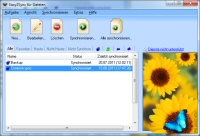 The new version 3.02 of our software to sync files, Easy2Sync for Files is now live. The update brings a new task option and some bug fixes. It’s now possible to skip files that already exist on both sides (even if their contents are not the same). Furthermore the update fixes a bug with files that had an improbable date (like 1.1.1960).
More info about the program can be found on the file sync page.
Posted in Files, New Release, Sync | Comments Off on File sync 3.02
Tuesday, June 12th, 2012
 The new version 3.01 of our file sync software Easy2Sync for Files is now available. The update brings some detail improvements. It’s now possible to add files to the negative list directly from the sync. Furthermore it fixes some issues, for example a crash that could happen in the main window if the tooltip became too large.
More info about the program can be found on the file sync page.
Posted in Files, New Release, Sync | Comments Off on File sync 3.01
Sunday, April 29th, 2012
The new version 3.00 of our file sync software Easy2Sync for Files is now available. The software now supports 64 bit. Thus the program is not limited any more by the old RAM limits and can hold almost any number / complexity of tasks. (32 bits systems are still supported, too, of course.)
More info about the program can be found on the file sync page.
Posted in Files, New Release, Sync | Comments Off on Easy2Sync for Files 3.00 – Now with 64 bit
Friday, December 9th, 2011
The new version 2.01 of our file-sync-software “Easy2Sync for Files” is here. The update makes it easier to get started after the installation with a unified wizard and fixes a bug that happened when setting up a task with USB devices.
More information can be found on the file-sync-page.
Posted in Files, New Release, Sync | Comments Off on File Sync 2.01
Thursday, August 25th, 2011
It is now almost exactly 10 years since we released the first version of Easy2Sync. Since then, much has happened with every update and there were lots of new features and improvements. Thus it is finally time to time to dare to step to version 2.00.
We have reworked the look of the program (again) and made it look more modern. In addition, there are numerous other improvements such as improved wizards and improved reaction speed in sync dialogue.
More information about the program is also the file-sync page
Posted in Files, New Release, Sync | Comments Off on Easy2Sync for Files 2.00
Thursday, August 18th, 2011
The new version 1.08 of our software 1-Click Duplicate Delete for Files is now available. The update fixes a problem with the version preselection using user-defined folder names.
More info about the software can be found on the duplicate search page.
Posted in Duplicates, Files, New Release | Comments Off on Finding duplicate files 1.08
Monday, May 16th, 2011
The new version 1.43 of our file-sync-software “Easy2Sync for Files” is now available. The update includes several detail improvements and new features.
Easy2Sync for Files now includes a new copy mode for so-called “incremental backups” where every day the changed files are saved. Furthermore in includes a reworked file dialog (with new filters) and it’s now easier to reach sub-dialogs that a configured via checkboxes.
More information about the program can be found on the file sync page.
Posted in Files, New Release, Sync | Comments Off on File sync 1.43
Wednesday, December 15th, 2010
If you’re using the Avira anti-virus scanner, you might have seen error messages in our programs. They’re caused by a bug in Avira. Since Avira doesn’t release the bugfix this week (maybe next week?), we’re publishing a work-around. You can simply download the Easy2Sync update from the program page.
Or you could simply use Microsoft Security Essentials instead of Avira. (Free for private use) Fixes the problem, too. 😉
Posted in Files, New Release, Sync | Comments Off on Easy2Sync for Files 1.42 fixes bug caused by Avira
Tuesday, December 7th, 2010
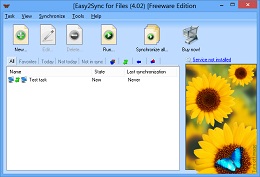 The new version 1.41 of Easy2Sync for Files is now available and brings several smaller bugfixes and improvements. For example it’s now possible to do an automatic sync every 30 days or at the 11th of each month. And Easy2Sync’s speed has been improved for very complex tasks.
For more information about the program, please refer to the file sync homepage.
Posted in Files, New Release, Sync | Comments Off on File Sync – 1.41
Friday, July 23rd, 2010
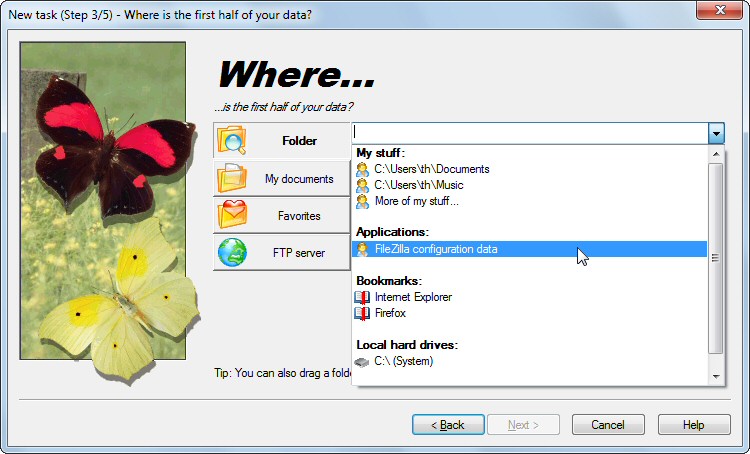
The latest release of Easy2Sync for Files has a nice new feature. It can help you synchronize your FileZilla (an FTP client) configuration between several computers.
Here’s how to use this feature:
- Install Easy2Sync for Files (Freeware Edition is enough for this)
- Create a new task
- For the data source use the drop down box (black triangle on the right) and select FileZilla
- Repeat for the second data storage.
That’s all.
Here’s a screenshot of the data storage with the new option:
Posted in Files, Sync, Trick | Comments Off on Synchronizing FileZilla with Easy2Sync for Files
Tuesday, July 6th, 2010
Happy Birthday!
The 40th version of Easy2Sync for Files is here. Version 1.40 offers an easier creation of tasks to synchronize FileZilla configuration files. Furthermore it’s now faster to sync while the “hidden files” filter is active.
More info about the software can be found on the file sync page.
Posted in Files, New Release, Sync | Comments Off on Easy2Sync for Files turns 40
Friday, April 30th, 2010
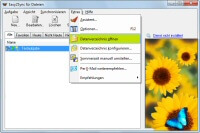 The new version of our file sync tool Easy2Sync for Files is available. Once again it features a number of detail improvements about environment variables, tabs, icons and butterflies.
More information about the program can be found on the program’s file sync homepage.
Posted in Files, New Release, Sync | Comments Off on Easy2Sync for Files 1.39
Sunday, January 24th, 2010
The new version 1.38 of Easy2Sync for Files is available. Apart from several smaller bugfixes and improvements the biggest news are the “Custom steps”. They allow Easy2Sync to run commands (like in batch files) before or after the sync.
More info about the program can be found on the file sync homepage.
Posted in Files, New Release, Sync | Comments Off on Easy2Sync for Files 1.38
