Archive for the ‘Outlook’ Category

New Bundle: Outlook Convenience Bundle

Friday, December 8th, 2006

Well, not all Outlook users may need a sync software, but we can also offer other interesting programs:

1-Click Duplicate Delete for Outlook
(a program for finding and removing duplicate e-mails, contacts, etc. in Outlook)

ReplyButler
The perfect Outlook add-in for canned texts and power-cllipboard users.

And now you can buy both programs together in the “Outlook Convenience Bundle” and get a great 20% discount. Currently it’s not yet in official price list, blog reader get it first. Click here to get 20% discount.

Trick: Deleting in Outlook

Wednesday, December 6th, 2006

Yeah, deleting objects in Outlook is simple, you’ve done that before.

No, probably you haven’t. You’ve moved items into the recycle bin. That’s a good choice in most cases because you can undo that. In some cases, like very large attachements, duplicates or spam you may want to delete the items permanently.

The trick is quite simple. Don’t use the “Del” key. Use “Shift+Del”. That way the selected items are gone forever. (But please only use that trick if you’re really sure you want to delete that. Please.)

Trick: Making Outlook compacter

Wednesday, November 29th, 2006

Do you have too many toolbars in Outlook? Want more space your mails?

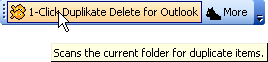
You can have that, if you’re willing to sacrifice a few icons that you don’t need, because you can integrated the important icons into Outlook’s main toolbar. It can look like this:
1-Click duplicate for Outlook

(This sample is taking with icons from 1-Click Duplicate Delete for Outlook. Icons from the program’s toolbar were moved into the main toolbar.)

If you want that, too, perform the following steps:

  1. Right-Click on an Outlook toolbar and choose “Customize”.
  2. Hold the Ctrl-Key, click on an icon and drag it into the Outlook main toolbar
  3. When you’re done with the icons, close the toolbars that you now don’t need any more.

Please note: This works with all Outlook toolbars but not with all toolbars provided by add-ins. Our own duplicate scanner, 1-Click Duplicate Delete for Outlook supports this, as you can see.

When delayed Outlook messages don’t get sent

Saturday, November 25th, 2006

There’s a feature in MS Outlook that most people don’t know. When writing an e-mail you can specify that you don’t want to send it immediately, but at a certain time. If you’re using an Exchange Server the message will be sent at the correct time, even if you PC isn’t switched on.

Activating this feature is a bit cumbersome. In your e-mail, choose “View” / “Options”. There you’ll find the necessary dialog items.

But there’s also a fallacy here:
The delayed items are waiting in your outbox and if you double-click to check what strange thing is waiting in your outbox and then CLOSE the message after reading it, it won’t be sent out at all. You’ll see that it won’t be in italics either.

Trick I:
To get it sent out again at the correct time, you’ll have to open the item again and SEND it again. Then it will work.

Trick II:
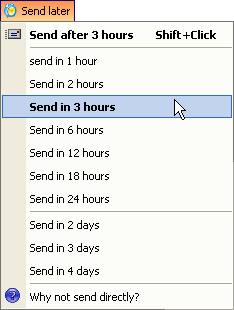
If you use ReplyButler, you can use the “Send Later” button and get a nice menu which is much easier to use than the hassle with the options dialog.

Send E-Mail later

New Outlook sync software version

Friday, November 24th, 2006

Synchronizing 2 Outlook installations can be tricky, but it just got easier. A new version of Easy2Sync for Outlook is out. Since the program already has a huge feature list, the changes are mostly details, like more intuitive error messages in several special cases.

Sync Outlook with filters
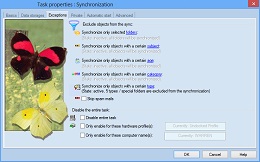
[Image: Some of the filters that Easy2Sync for Outlook supports]

You can use Easy2Sync for Outlook to synchronize normal PST files or Exchange Accounts (even “Public folders”). The image shows some of the filter options that are supported, like for example categories.

You can download the latest version here.

Delete your Outlook duplicates – Join your contacts

Thursday, November 23rd, 2006

YES!! Version 1.00 is out. Your Outlook duplicates are history now, with 1-Click Duplicate Delete for Oulook it’s amazingly easy (and fast) to remove them.

With a single click it can scan your e-mails, contacts, etc. find duplicates, compare them in detail and move them to the recycle bin (an undo is possible of course). And if you don’t have duplicates, but similar items, the software will automatically suggest a new definition for “what’s equal”.

It’s as simple as clicking here:
Remove your Outlook duplicates

New ReplyButler version

Tuesday, November 21st, 2006

Once again, another version of the Outlook Poweruser utility. The change is small, but important:

The auto-recognition of your name is improved. This is needed to automatically sign your e-mails correctly. Give the new version a try: ReplyButler (Freeware Edition)

Beta 2: Remove Outlook Duplicates

Tuesday, November 21st, 2006

You’ve got this e-mail twice. You’ve got this e-mail twice. 😉

And with 1-Click 1-Click Duplicate Delete for Outlook, you can get rid of them very easily. The Beta 2 is now out, with some improvements for the toolbar and an intelligent assistant that can offer you to search for similar objects instead of real duplicates.

Click here to participate in the beta program:
Remove Outlook Duplcates

Trick: Protecting the Outlook sync configuration

Monday, November 20th, 2006

There are things that are good for the user. And there’s the exact opposite.

Some users have the talent to do the 100% opposite. Mess up the configuration. Change the PST file path. And so on.

So, you might want to protect your Outlook sync configuration. Easy2Sync for Outlook has a powerful option for that, but it’s a but hidden and can be overlooked.

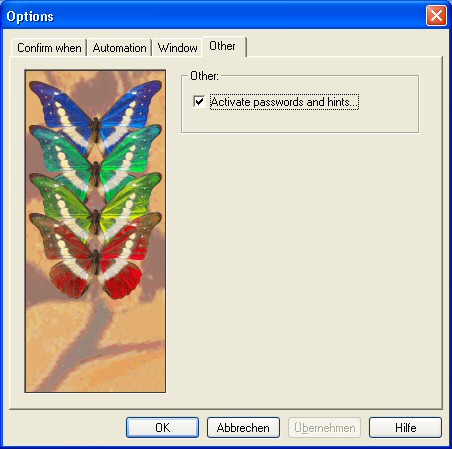
But actually it’s quite easy. Open the configuration and look at the “Other” tab:
Synchronize - Protect options with passwords

You’ll get a subdialog and here you can configure passwords and notification messages for different situations. Starting the program, editing a task, editing the options, running an Outlook sync from the tray icon. And so on.

Please click here to try it and get more info about Easy2Sync for Outlook.

Trick: Synchronize “Contacts” with “Kontakte”

Saturday, November 18th, 2006

Outlook comes in may languages. And your “Contacts” folder may be called Contacts, Contactos, Kontakte, Contacs, Contati, Kontakter, Contactpersonen, etc. You get the picture. 😉

The problem begins if you want to synchronize different Outlook versions (in different languages versions). Normally you’d suddenly have to contacts folders, one in each language. That’s any excact synchronization. But not what you want. You want “Contacts” synchronized with “Contactos” (or whatever).

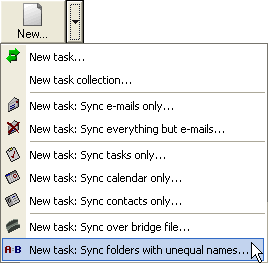
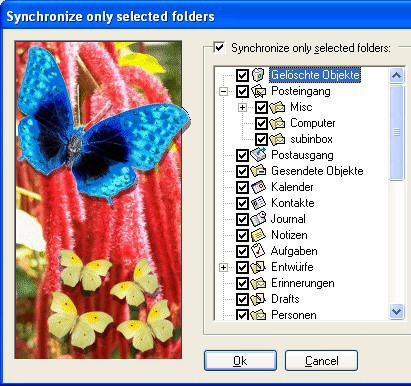
Easy2Sync for Outlook includes a trick to do just that. Theres an assistant to sync folders with “unequal names”:
Synchronize Contacts with Kontakte

Here you can specify these two folders for a new task. That task will synchronize only the contents of THESE folders, ignoring the different names, ignoring everything around it.

Almost perfect.

The only remaining problem is, if you still want to synchronize everything else. You’d simply create a new task for that. But then you’d still synchronize these 2 contacts folders. That’s why you have to exclude them. That’s easy:
Exclude folders from Outlook sync

That’s all. Wanna try? Here’s more about how to synchronize Outlook.

New ReplyButler release

Friday, November 17th, 2006

ReplyButler Version 1.21 is out, and it has GREAT new features:

  • Change the subject when inserting a Cliptext
  • Cliptexts now support FormatedText
  • and lots of details ….

Do you need that program?

YES! If you write a lot of e-mails, because the program makes answering quicker by pre-write the addressing with the name (“Hello Peter,”).

YES! If you write to a lot of different people. Because you WILL be typing the same thing over and over. And ReplyButler can save your time here.

And most of all, it’s free, at least the basic features are free foreever. Great plugin, great value, download the Outlook-add here.

Try it, and tell me if you like it. 😉