Archive for the ‘Trick’ Category

Synchronzing with an USB stick that changes its drive letter

Friday, March 23rd, 2007

On some Windows systems, USB devices (USB sticks, USB hard disks or whatever) like to change their drive letter. It’s their idea of having fun. Plug it in and it’s E:\, take it out, plug it in again and it’s F:\. Great. How can you synchronize your files with such a chameleon? Any path that you enter is bound to be wrong, sooner or later. So how can you synchronize with it?

Well, you can, with Easy2Sync.

First, make sure that the device has a unique name. You can edit that it its properties, if necessary.

At the task, where you’d normally enter the drive letter, you can enter the drive name, along with some special markers:

In General: %DRIVELETTER:MyDriveName%:\

The percent signs, the colon and the word “DRIVERLETTER” are pre-defined markers. You only have to fill in the name of your USB drive. If your USB stick had the name “MyUsbStick”:
%DRIVELETTER:MyUsbStick%:\

Or if you want to synchronize with a subdirectory:
%DRIVELETTER:MyUsbStick%:\MySubdirectory\

Try it:

Download Easy2Sync for Files

Download Easy2Sync for Outlook

Handling Locked Files 2/2

Tuesday, March 20th, 2007

When you’re synchronizing files, you may encounter the problem that the file can’t be synchronized because it’s locked.

And sometimes it’s not really important. If you’re backing up 100.000 files every day, why worry about one that is currently open? You can instruct Easy2Sync for Files not to report such copy problems. Have a look at the options:
Easy2Sync for Files

You can simply check “No message box on copy errors”.

Try it and Download Easy2Sync for Files.

Forgotten attachments

Sunday, March 18th, 2007

How many times did you send an e-mail, but forgot the attachments? Don’t try to count, fix it!

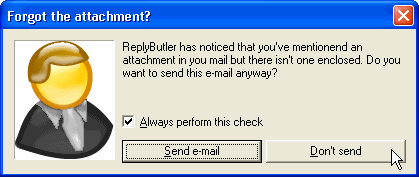
One of the many thing that ReplyButler does is to save you from this embarrassment. It analyzes your answer, and your attachments and asks you if it looks like you forgot the attachment. Automatically.

Forgot attachment

Try it! Download ReplyButler.

Handling Locked Files 1/2

Monday, March 12th, 2007

When you’re synchronizing files, you may encounter the problem that the file can’t be synchronized because it’s locked.

Now, there a different levels of file locking. Easy2Sync for Files automatically tries to make the best out of the situation and tries to copy the file whenever possible while detecting and avoiding certain risks in the involved Windows functions. But sometimes that’s not enough. Sometimes files just can’t be copied (and there may be a good reason for that).

So the only thing left is to close the application that’s locking the file. If you know which one that is, you can enter it into the options:

http://itsth.de/img/produkte/en/easy2sync/large/easy2sync_33.jpg

Before running the task, Easy2Sync will check if the application is running and ask you to close it, so that the synchronization can take place. This is useful for example for database applications.

Try it: Download Easy2Sync for Files

Positive and negative lists for file synchronization – Examples

Friday, March 9th, 2007

Example 1: Only office documents should get synchronized.
Positive list for files:
*.xls
*.doc
*.ppt

Example 2: Backup files should not get synchronized.
Negativliste for files:
*.bak
*.backup
Copy of *

Example 3: Backup folders should not get synchronized.
Negative list for directories:
Backup8

Example 4: The backup folder in the logfile directory should not get synchronized.
Negative list for directories:
\logs\backup

Example 5: Only files in the root directory and in the folders “src” and “res” should get synchronized. These folders are at top level.
Positive list for folders:
\src
\res

Example 5: Only files in the root directory and in the folders “src” and “res” (and their subfolders) should get synchronized. These folders are at top level.
Positive list for folders:
\src
\src\*
\res
\res\*

Example 7: Only files in the subfolders “src” and “res” should get synchronized. Several directories with these names can exist in the directory tree:
Positive list for files: (yes, files)
\*\src\*
\*\res\*

Try it: Download Easy2Sync for Files

Automatic e-mail organization with ReplyButler

Sunday, February 18th, 2007

Do you keep the e-mails you answered? Probably. Do you keep them well organized? Probably not.

With ReplyButler that’s easy, because it’s done automatically. The program can automatically move and e-mail that you answered into the right folder. The customer is talking about “Product A”? Simply defined a rule for the products name and ReplyButler will move any e-mail where that product is mentioned in subject and / or mail body.

ReplyButler can move the original e-mail, or also your answer (after it’s been sent) – whatever you like.

Try it, I promise that you won’t want to miss it any more!

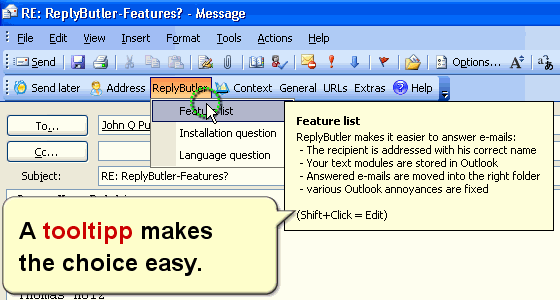
E-Mail answering

Positive and negative lists for file synchronization

Wednesday, February 14th, 2007

Easy2Sync for Files can exclude files from synchronization depending on positive and negative lists. These lists are very powerful, but if you don’t know how to handle them, you can also make powerful mistakes.

For each directory and each file Easy2Sync, can check rules to see if this directory or file should be synchronized. Despite their name, negative lists are less restrictive and most of the time a better choice.

A typical mistake is to expect intelligence from the software when applying your rules (especially if you’re using positive lists). Easy2Sync exactly follows your rules but it can’t ‘understand’ them.

Now what does that mean?

Often, you’ll man to synchronize a certain directory. This is normally configured corrected. But your rules may disallow the synchronization of the directory above. Result: Easy2Sync encounters the directory above and notices that the directory above may not be synchronized according to the rules. And thus it ignores the entire sub-tree, including the subdirectory for which you specified special rules.

Try it!

Task types with Easy2Sync for Files – More than just file sync

Monday, February 12th, 2007

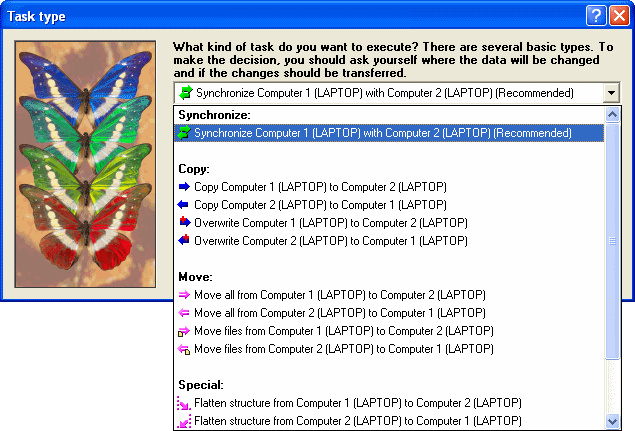
At first Easy2Sync was developed just to synchronize. Now you can also just copy or overwrite data.

The difference?

When synchronising, both computers have the same rights. Changes on one computer will be transferred to the other. In a sub-dialog of the first page of the task properties you can choose other modes.

Sync Task types

In the copy mode, one computer is the slave (the target computer) and only receives the changes (of the source computer). If you change something on the target computer, Easy2Sync will undo this and delete your changes. Changes on the source computer however, will be copied to the target computer.

Overwriting is the same as copying, with one difference: In the overwrite mode Easy2sync will never ever delete any files. Even if you delete a file on the source computer, it will not be deleted on the target computer.

Moving is also quite similar to copying. With one difference: The file will be deleted from the source PC after copying it to the target PC. You can choose whether you want to move both files and directories or move only files and keep the directory structure on the source PC.

To flatten the structure means that the files aren’t simply copied from the source to the target PC, but the directory information will be lost. No matter in which subdirectory of the source PC the file was stored, but will be copied directly into the target directory (and not in any subdirectory). Just like a Copying mode this task type always works in the specified direction. If several files with the same name exist in different source directories, the newest one will win the conflict in the long run (maybe only after several synchronizations).

Want to try? Download.

Making things bigger – the smallest tip ever

Friday, February 9th, 2007

Today’s the shortest tip ever: Did you now you can change the size of Easy2Sync’s main window? Simply drag the border or click on the maximize button. (This works with Easy2Sync for Files and Easy2Sync for Outlook.)

Organizing your tasks II – Other sync view filters

Monday, February 5th, 2007

If you have many tasks, it’s time to get organized. If you haven’t already done so. Use the task collections to group several synchronization tasks into one task collection. And then enable the filter “Don’t show elements of task groups” in the view menu. And suddenly your file / e-mail synch became a lot easier. You’re seeing much less tasks now (don’t worry, they’re still there), but you can run all of them in one go with the task collection.

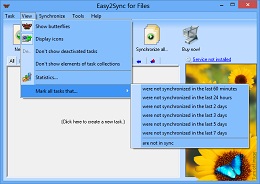
The same applies to deactivated tasks. You can deactivate a synch if you currently don’t need it any more, but still don’t want to delete it. So, simply deactivate the synchronization tasks and use the menu item in the view menu to hide tasks like these:
Screenshots

Protecting your private calendar items with Easy2Sync for Outlook

Friday, February 2nd, 2007

Easy2Sync can synchronize both your e-mails and your calendar items.
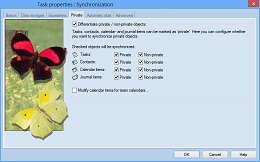
This can be useful if you want to share your calendar with you co-workers. But what about your private data in your calendar? That’s none of you co-workers’ business. No problem with Easy2Sync for Outlook – you can simple exclude private items from the PST sync. Simply active the “private filter” in your task properties.

Synchronize private e-mails

It also works the other way round. You can synchronize (or copy) only your private items, if you’d prefer that, for example for your private calendar at home. Download it now and try it.

Organizing your tasks I – Tabs

Tuesday, January 30th, 2007

In Easy2Sync (for Files and for Outlook) you store the data for the syncs in “tasks”. If you have many tasks, then may need some tricks to organize them. The tabs are a great help here. They’re a row of texts and images just above the task list:
Synchronization tasks

Depending on the selected tab, you’ll only see the tasks, that match the tab’s criteria.

* All: Well, just all tasks
* Favorites: All tasks that have been synchronized in the last 7
days, but not today.
* Today / Not today: Only tasks that (haven’t) been synchronized
today
* Not in sync: Tasks where the last sync wasn’t successful
* Icons: They symbolize a task type (copy, sync, overwrite, …. Only
tasks with this type are shown

These view filters will help to choose the right synchronization task for your e-mails, contacts, etc. or files. Want to see it live? Try the Freeware Edition of Easy2Sync for Files or Easy2Sync for Outlook.

Synchronizing files without questions

Sunday, January 28th, 2007

Buzz off! That’s what some people may thing if Easy2Sync for Files is asking them questions. Because by default, the program asks questions in all cases that may be important to the user.

But help is just a keystroke away. If you don’t want these questions, simply press F12. Here are the options and here you can tweak and configure all the questions and dialogs:

  • Questions for copying, overwriting, deleting, etc. can be turned off on the “Confirm” page
  • The Synchronization Overview, the assistant and the summary can be turned off on the “Windows” page.
  • Error messages for copy failures can be turned off on the “Automation” page.

Try it and synchronize your files!

Finding Duplicates that aren’t duplicates

Friday, January 26th, 2007

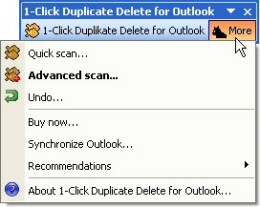
Sounds strange, doesn’t it? Sometimes people complain that “1-Click duplicate delete for Outlook” doesn’t find all their duplicates. But it most cases this isn’t true. It’s just that their duplicates aren’t duplicates. They’re just objects that are similar.

And that’s the problem.

Because “1-Click duplicate delete for Outlook” can’t just go and delete everything that’s similar. (Or should it delete all e-mails that have the same sender address. See? You don’t want that.)

Outlook duplicates

So, what should you do?

If the items are quite similar than our program will automatically suggest a definition of what’s a duplicate/similar objects and what not. If it doesn’t, you’ve got to use a trick:

  • Choose 2 items that seem be the same. Do this have a closer look
  • Create a new folder in Outlook (Contact folder for example)
  • Copy both items into that folder to have a save “playground”. Look at that folder.
  • Choose “More” / “Advanced Scan”.
  • For “Where” choose the current folder (the “playground”).
  • On the “How” page, choose “The following…” and select only the “Subject”. You’ll get a warning, which you can ignore. But only because we’re in the “playground” here. This setting isn’t recommended for your normal data.
  • Now only the subject is compared and you’ll see your copied items in the confirmation dialog. Click on the “[+]” signs to expand the data.

Now you can see in the versions, what the differences are and why the program didn’t report the “Duplicates”.

If you do think, that the program should recognize this, please send us a screenshot. (Please note that the program cannot remove duplicates with really BIG differences. Like the same subject in different languages.)

Or you can simply adjust the the definition for duplicates. Use the scan options from above but choose all items to compare except the one that we reported as different. Please note that you SHOULD have a closer look at the reported items before deleting them. You definition may be so weak that it may define other items as duplicates that are in fact different. Download 1-Click Duplicate Delete for Outlook.

When you’re synchronizing lots of files

Wednesday, January 24th, 2007

Easy2Sync for Files can handle LOTS of data. And some people have created LOTS of tasks to handle their data. Did you know that you can put many tasks into a “task summary”. Click on the “task” menu to see it. Task summaries have several advantages:

  • Less clutter. By default tasks that are member of a task summary will be hidden from the main list
  • Easier start. Just start the task summary and all tasks will be synchronized
  • Easier automatic start: Just organize the timer conditions for the task summary -and not for 20 individual tasks

By the way: You can do the same with Easy2Sync for Outlook.

Download Easy2Sync for Files.