Archive for the ‘Outlook’ Category
Tuesday, January 30th, 2007
In Easy2Sync (for Files and for Outlook) you store the data for the syncs in “tasks”. If you have many tasks, then may need some tricks to organize them. The tabs are a great help here. They’re a row of texts and images just above the task list:
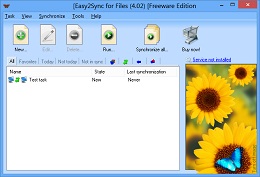
Depending on the selected tab, you’ll only see the tasks, that match the tab’s criteria.
* All: Well, just all tasks
* Favorites: All tasks that have been synchronized in the last 7
days, but not today.
* Today / Not today: Only tasks that (haven’t) been synchronized
today
* Not in sync: Tasks where the last sync wasn’t successful
* Icons: They symbolize a task type (copy, sync, overwrite, …. Only
tasks with this type are shown
These view filters will help to choose the right synchronization task for your e-mails, contacts, etc. or files. Want to see it live? Try the Freeware Edition of Easy2Sync for Files or Easy2Sync for Outlook.
Posted in Files, Outlook, Sync, Trick | Comments Off on Organizing your tasks I – Tabs
Friday, January 26th, 2007
Sounds strange, doesn’t it? Sometimes people complain that “1-Click duplicate delete for Outlook” doesn’t find all their duplicates. But it most cases this isn’t true. It’s just that their duplicates aren’t duplicates. They’re just objects that are similar.
And that’s the problem.
Because “1-Click duplicate delete for Outlook” can’t just go and delete everything that’s similar. (Or should it delete all e-mails that have the same sender address. See? You don’t want that.)

So, what should you do?
If the items are quite similar than our program will automatically suggest a definition of what’s a duplicate/similar objects and what not. If it doesn’t, you’ve got to use a trick:
- Choose 2 items that seem be the same. Do this have a closer look
- Create a new folder in Outlook (Contact folder for example)
- Copy both items into that folder to have a save “playground”. Look at that folder.
- Choose “More” / “Advanced Scan”.
- For “Where” choose the current folder (the “playground”).
- On the “How” page, choose “The following…” and select only the “Subject”. You’ll get a warning, which you can ignore. But only because we’re in the “playground” here. This setting isn’t recommended for your normal data.
- Now only the subject is compared and you’ll see your copied items in the confirmation dialog. Click on the “[+]” signs to expand the data.
Now you can see in the versions, what the differences are and why the program didn’t report the “Duplicates”.
If you do think, that the program should recognize this, please send us a screenshot. (Please note that the program cannot remove duplicates with really BIG differences. Like the same subject in different languages.)
Or you can simply adjust the the definition for duplicates. Use the scan options from above but choose all items to compare except the one that we reported as different. Please note that you SHOULD have a closer look at the reported items before deleting them. You definition may be so weak that it may define other items as duplicates that are in fact different. Download 1-Click Duplicate Delete for Outlook.
Posted in Duplicates, Outlook, Trick | Comments Off on Finding Duplicates that aren’t duplicates
Thursday, January 18th, 2007
It’s hard to make great things better, so we’re working on the details by now:
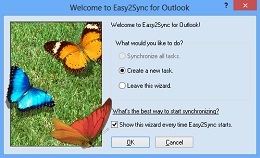
- A completely automatic sync on system shutdown
- An automatic backup of the configuration
- An exit button in the tray menu
You can get the latest version here.
Posted in New Release, Outlook, Sync | Comments Off on Easy2Sync for Outlook – Version 1.19 is available
Wednesday, January 17th, 2007
Yes, you can do that. It you’re using the Freeware Edition for more that 30 days, ReplyButler will add 2 small lines of text at the end of your e-mails which hint at our products.
And you can earn money with this. Register with Share-It (that’s completely free) and enter your affiliate number into ReplyButler (Extras / Options / Answer details / Footer). Now, if we sell a copy to anyone who was referred from your e-mail, you’ll get 15% of the purchase price (after deducting taxes and transaction costs). If you’re not interested in the money or don’t want to register, just choose one of the predefined charity affiliates.
Trick: If you’re using the Home- or Business Edition, or the Freeware Edition for less than 30 days, you can activate this manually in the options.
Posted in Outlook, ReplyButler | Comments Off on Earn money with ReplyButler
Tuesday, January 16th, 2007
Version 1.25 is out. We’ve been busy during the last month, including lots of detail improvements. Probably the most interesting one is the new Linguatec translation engine:
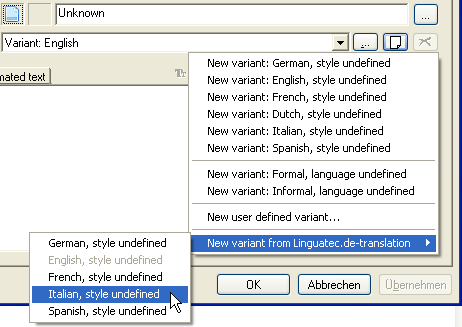
If you have a text module in one language, simply click on the “new” button and pick a language to let the Linguatec website translate your text module. Great for everyone who does support work in multiple languages.
You can get the new version here.
Posted in Add-In, New Release, Outlook, ReplyButler | Comments Off on New ReplyButler Release
Saturday, January 13th, 2007
Yes, version 1.05 is out.
And well, there isn’t much to report. The program works simply this great that we only had to fix details. So, no big news, it worked great and it still works great.
Try it for free!
Posted in Duplicates, New Release, Outlook | Comments Off on New Duplicate Delete for Outlook Release
Wednesday, January 10th, 2007
At Christmas, New Year and several other times of the year, we use special greeting phrases in our lives. And ReplyButler can use them, too. Automatically wishing the people “Merry Christmas” is very easy:
- Open the ReplyButler Options (Extra / Options)
- Go to the “My answer” Tab
- Click on the Button “…” that is between the 2 combo boxes at the top
If you want to add Christmas or New Year greetings, simply use pre-defined menu-item for that and confirm the next dialog. Now you’ve got a next “special case” in the left combo box. Choose here the Christmas case and you can edit the phrases that you want to use here.
If you want to defined your own special case, for example a special greeting phrase in the evening, use the “…” and add a “user-defined” case with a nice name and the right conditions (here: the time). Then, while this special case is active, just enter the phrases that you want to use. Leave the edit boxed empty to use the default values from the “special case default”.
Posted in Outlook, ReplyButler, Trick | Comments Off on Reply with seasonal greetings in your e-mail
Thursday, January 4th, 2007
ReplyButler can store canned texts, which is great for support work. If you have many texts, you can manually train it to find the right text for you.
By default the software tries to learn when a canned text fits from the e-mails that you insert it into, but you can also manually specify keywords. To do that, edit the canned text and go to the second tab. Here you can edit keywords and choose relevancy criteria.
Example: You have a price list that you send customers who are asking for it. Then enter the keywords “price”, “prices” and “pricelist” and tell the software that this canned text is relevant if any of these words occur in the e-mail. Next time that you get an e-mail questioning for prices, don’t search the menus for your text. Just open the context menu -there it is.
Give it a try and download ReplyButler now.
Posted in Add-In, Outlook, ReplyButler, Trick | Comments Off on Doing support with canned texts III
Wednesday, December 27th, 2006
ReplyButler can store canned texts, which is great for support work. But if you’re really into this and your text collection grows, it will get difficult for you to find the right text.
The solution? Use folders!
ReplyButler supports folders that contain the canned texts or even other folders. This allows you to organize your texts into nice groups with speaking names. You can even assign each text 2 icons. One normal icon (like an image of an e-mail) and an overlay icon (like a yellow exclamation mark). Both icons are displayed together as one when you look at the menu with the clip texts.
Posted in Add-In, Outlook, ReplyButler, Trick | Comments Off on Doing support with canned texts II
Wednesday, December 20th, 2006
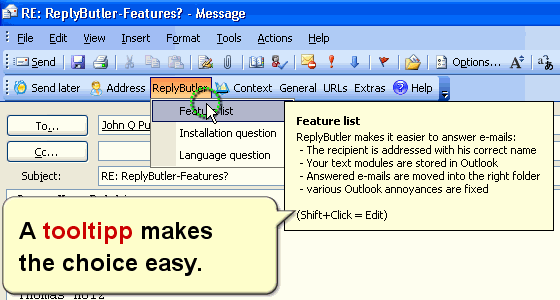
ReplyButler has the nice feature of automatically addressing the recipient of an answer correctly. But even nicer (and perhaps less-know) is its integration with canned texts. You can store your canned texts into ReplyButler and thus in Outlook and choose the right text directly from your email window. These texts can save you a LOT of work if you’re doing support for a product or answer the e-mails for a website. Type your answer just once and re-use it many times.
Posted in Add-In, Outlook, ReplyButler | Comments Off on Doing support with canned texts I
Tuesday, December 19th, 2006
Outlook can mark any mail that you read as “unread”, so it won’t be printed in bold any more. Perhaps you wanted that. Perhaps not.at. Perhaps not. You can right-click any more to change the “read” status or use the shortcut Ctrl+U (mark unread) or Ctrl+Q (mark read).
BTW: Did you know that Easy2Sync for Outlook, will also synchronize the read / unread state of an e-mail?

Posted in Outlook, Trick | Comments Off on Simple Trick: Making mails (un-)read
Tuesday, December 19th, 2006
The new version 1.04 of 1-Click Duplicate Delete for Outlook is out, you can download it here. Among other (smaller) things, the new version has some improvements on recognizing duplicates. Some duplicates, that weren’t recognized before, now get removed, like duplicates created bei OlTrans and contacts where the Dr. Title is different.
Posted in Add-In, Duplicates, New Release, Outlook | Comments Off on New Release: 1-Click Duplicate Delete for Outlook
Saturday, December 16th, 2006
The headline may sound a bit strange, as we have another product named Easy2Sync for Outlook. But since that’s only for Outlook (and not Outlook Express). But don’t worry, with some limits, you can still sync them.
Search your harddisk for *.dbx files or go to Tools / Options / Maintenance and choose the StoreFolder button to find the folder where your mail files are stored. You can use Easy2Sync for Files to synchronize these files with another PC. If you want to synchronize this directory ONLY (and no other directories), the Freeware Edition is all you need, so you won’t have to buy anything.
BUT
Yes, now comes the BUT part. Easy2Sync for Files doesn’t understand what’s inside the file, it just copies the newer version over the folder. And if you’ve modified the same file on both PCs single the last sync, you’re in trouble. Easy2Sync will ask you with version you’ll want to keep and which one to loose.
The solution: Synchronize often. Especially always synchronize before switching to the other PC.
Posted in Outlook, Sync, Trick | Comments Off on Sync Outlook Express with Easy2Sync for Files
Sunday, December 10th, 2006
By default 1-Click Duplicate Delete for Outlook will only scan the current folder in Oneclick mode. (Hint: In the next release, you’ll also be able to include subfolders).
If you want to scan the entire PST-file for duplicate e-mails (or contacts, etc.) you can use the advanced mode. Or you can use a trick:
Before you click on the “1-Click…” button, active the “Outlook Today” view in Outlook which is the uppermost folder in the Outlook folder tree. If this view is active, the program scans the entire PST file, including all subfolders for duplicates. If the PST file containts contacts or calendar items, they will be scanned, too.
To get the Test version of 1-Click duplicate delete for Outlook please click here.
Posted in Duplicates, Outlook, Trick | Comments Off on Trick: Removing Outlook Duplicates in the ENTIRE pst file
Saturday, December 9th, 2006
Yes, I admit, its one if my favourite program. And there’s a new version for ReplyButler out, version 1.23. Most of the changes are internal things, but the recognition of dutch names (with their “te” and “van de” has been improved).
And if you don’t know our perfect Outlook add-in by now, here’s a screenshot:
To get the latest version of the Outlook add-in click here. Or get more information on the Outlook tool here.
Posted in Add-In, Outlook, ReplyButler | Comments Off on New ReplyButler version
